
Cheap shared subscription to CapCut
CapCut Standard and Pro do not offer the same access: Standard is focused on mobile and Pro also allows working on desktop and web. Choosing the right plan prevents paying for features you don’t need. On our shared accounts platform you can get CapCut Premium at the best market price.
Cheap CapCut: how to save on CapCut Pro sensibly
You finish assembling a video and, when exporting it, discover that one of the effects you chose requires a paid plan. Is it worth subscribing or can you swap that asset and continue with the free version? That common editing decision is a good starting point to look for cheap CapCut.
Savings depend on how you work. Someone who publishes two videos a month has different needs than someone who prepares daily content for several clients. Start with the tools you actually use and then compare the plans that include them.
What paying less for CapCut really means
Paying less can mean taking advantage of a promotion, subscribing only during a campaign, or avoiding a subscription you don’t yet need. The most convenient offer will be the one that covers your tasks for the intended time and with an access model you understand.
Think, for example, of a shop producing videos for a four-week campaign. One month of access may cover that work. If the shop publishes weekly year-round, it’s worth comparing again. Usage time changes which offer is economical.
Include final price, any taxes and renewal conditions in your calculation. If you buy from a third party, also clarify what you will receive: an activation on your account, a full account, or a shared slot.
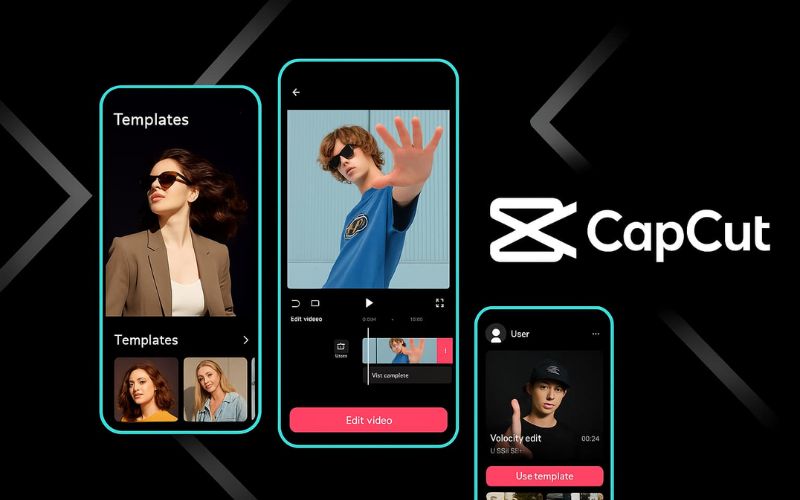
Before paying: which CapCut plan you need
Open a recent project and identify what made you lose the most time: trimming takes, fixing subtitles, cleaning audio, or finding visual assets. That review helps determine whether a paid feature would solve a frequent problem or simply caught your eye.
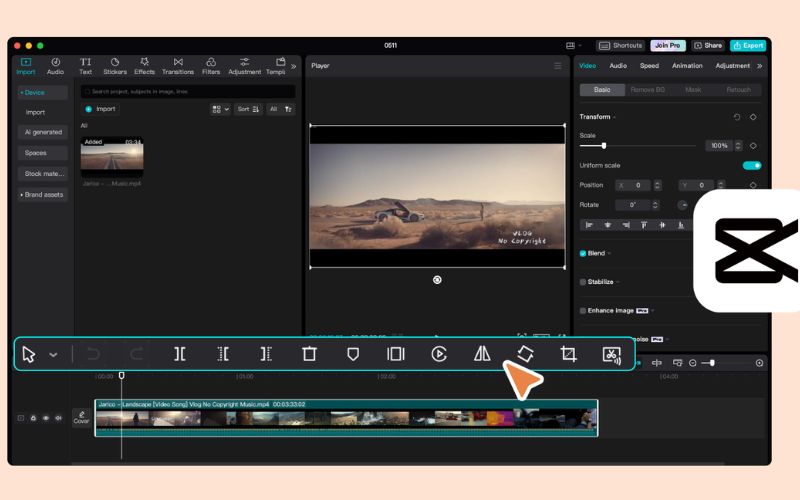
CapCut has versions for mobile, desktop and browser, but having the app does not mean the same features are available on all platforms. Check the plan shown in your account and the tools it includes on the device where you edit.
When CapCut Free is enough
For trimming clips, organizing takes, adding text and working with available free assets, the unpaid version may be sufficient. It’s a reasonable option to start, create personal videos, or publish simple content without an extra fee.
The most useful test is to finish a complete piece. Add your usual assets and check the export before committing to a plan. If the result meets your goal, you can keep using it without subscribing.
Pay attention to elements the app marks as premium. Sometimes replacing a transition or effect is enough to complete the video with free resources. Also review music and image usage terms if you will publish commercial content.
What to check when comparing CapCut Standard and CapCut Pro
The official comparison of Standard and Pro presents Standard as mainly for mobile editing and Pro as a mode with advanced tools and multi-platform access. That distinction deserves more attention than someone else’s price screenshot.
Aspect | CapCut Free | CapCut Standard | CapCut Pro |
|---|---|---|---|
Primary use | Editing with free assets | Editing mainly on mobile | Editing on mobile, desktop and web |
Resources and tools | Free selection and limits depending on feature | Features of the contracted mobile plan | Premium assets and advanced tools |
Storage | According to the account | Space indicated in the offer | Space indicated in the offer |
AI features | Availability and limits vary | Tools included in the plan | Advanced tools with limits or credits |
What to verify | That the project can be exported | That it covers your mobile tasks | That it includes the functions you need on each platform |
Check AI credits separately from the subscription. A tool’s presence in the catalogue does not mean unlimited use. Verify consumption, when credits renew, and if more would be needed for your video volume.
Legitimate ways to save on CapCut Pro
Start by comparing the offer shown in your account with options found in other channels. They must correspond to the same plan, period and access mode for the price to make sense.
These decisions can reduce spending:
- Keep the free version while it meets your tasks.
- Subscribe for a month for a temporary assignment.
- Consider the annual plan when you edit continuously.
- Check promotions applicable to your account and region.
- Disable renewal when you will stop using it.
Compare equivalent conditions, especially if one option provides an account and another activates the service on your profile.
Monthly or annual plan: calculate the effective cost
Divide the annual price by twelve to know its equivalent monthly cost. Then compare the annual total with what you would pay by subscribing only for the months you will edit.
For example, if a monthly plan cost €15 and an annual plan €120, the annual equals €10 per month. But for a two-month campaign, subscribing for those two months would cost €30. The annual may have a lower equivalent monthly fee while requiring a higher total expense. These figures are an example of calculation, not CapCut rates.
If your work schedule is irregular, the monthly flexibility can help control the budget. Also check the renewal amount: an initial promotion doesn’t confirm what you’ll pay next year.
Trials and promotions: how to tell if they’re worth it
A trial can help evaluate a specific feature, if it’s available for your account. Activate it when you have material ready and time to edit; this way you can test its usefulness with a real project.
Before accepting, note the end date, the subsequent price and the channel from which you must cancel. The trial should allow you to evaluate the plan before the next charge.
CapCut recommends canceling at least 24 hours before renewal in its subscription help. Check the applicable deadline for your purchase and save the cancellation confirmation.
Official subscription, full account or shared access: key differences
These terms describe access methods but do not by themselves guarantee the same conditions. A subscription purchased directly on your account allows management from the purchase channel. With a third-party offer, you must find out who administers access and how incidents are handled.
A full account may deliver credentials, while a shared slot allows access under the seller’s described conditions. The offer’s label is not enough to know who controls recovery. Confirm whether you can change the email, password and security details.
Permission to use multiple devices is not automatically authorization to share the account among people. Review CapCut’s conditions and the announced modality before deciding, especially if you will handle client files.
Purchasing from CapCut, the App Store or Google Play
Before confirming payment, check which CapCut account is logged in and which Apple or Google account will be charged. Keep the receipt: it will help identify where to manage the subscription if you later need to cancel.
Payment management depends on the purchase channel. CapCut states that mobile subscriptions bought through Apple or Google are managed from those stores. You can check the procedure in its guide to subscribing to Pro.
Then sign in with the same method on the devices you will use. Test access to premium tools and synchronization; don’t assume all local projects will automatically appear on another machine.
What buying a third-party account or profile implies
Read how access is delivered and how long it takes. If you have a scheduled publication today, an offer with later delivery may not work even if it’s cheaper.
Ask what happens if the subscription stops appearing active: who will check the problem, how you’ll contact them and what remedy the terms provide. You need to know the procedure before relying on the access for a delivery.
If others use the same account, clarify what they can see and modify. Back up your materials and avoid uploading confidential content to a space whose privacy you can’t verify.
How to compare a CapCut Pro offer without surprises
Before paying, check these points and save the offer description:
Exact plan: Standard or Pro and included features.
- Duration: days, months or a fixed expiration date.
- Access: activation, full account or shared slot.
- Compatibility: mobile, desktop, web and applicable region.
- Final price: taxes or fees, if applicable.
- Support: delivery, incidents and refund conditions.
Also calculate the cost of your other tools. If you already pay for a video editor, compare what CapCut would solve that the current one doesn’t. You can review Filmora options if you’re considering another editor. Avoid paying for two subscriptions to do the same work.
Signals to discard an offer
A promise of “lifetime” access requires a verifiable explanation when the product works by subscription. An offer that omits the plan, access period or delivery conditions also warrants review.
Discard procedures that require installing modified versions or handing over credentials for services unrelated to the purchase. If the seller cannot explain what you will receive or how a failure would be resolved, look for an offer with enough information to decide.
What features does CapCut Pro include?
CapCut Pro gathers tools to speed editing and expand your creative assets. Functions and their limits may vary by region, device and contracted plan.
Feature | What it’s for |
|---|---|
Premium effects, filters and templates | Give a visual style to your videos and save time preparing new pieces. |
Automatic subtitles | Generate subtitles from audio and correct them before publishing. |
AI tools | Automate editing tasks or generate content, depending on included features and credits. |
Motion tracking | Make certain elements follow a subject’s movement. |
Commercial-use resources | Access assets identified for that use, respecting each resource’s license. |
Cloud storage | Save projects and assets within the space available in your plan. |
Access on mobile, desktop and web | Use Pro features from different platforms with your account. |
Before subscribing, check which tools appear included in your account and which consume extra credits.
Why a price from another country is not always accessible
CapCut explains that the Pro price can vary by region, device and promotions. Therefore, a rate published in dollars or a screenshot from another country does not confirm your contract price.
Currency, taxes and payment channel requirements can change the total. Use the final amount applicable to your account as reference, and check whether the seller’s advertised region is compatible with your use.
CapCut APK is not a recommended way to save on Pro
APK is an Android installation format. The problem arises with modified files that promise to unlock paid features: they do not offer the same guarantees of origin, updates or operation as an official download.
Download CapCut from its official channels and avoid installers that ask you to disable device protections. Losing campaign files or compromising account access can cost more than the subscription you tried to save on.
For mobile, check the official store; on desktop, use CapCut’s website. Always verify the file origin before installing.
Which option to choose based on your CapCut use
For occasional posts, start with Free and test its limits on a complete video. If you edit mainly on mobile and need specific paid features, compare Standard. If you alternate between mobile, desktop and browser, review Pro and your account’s compatibility.
When creating content for a brand, the editor is only part of the work. You can use Canva for graphics and thumbnails, or consult Envato Elements resources to complete a production. Check licenses and compatibility: a template made for another program may not work in CapCut.
If you need images or illustrations for a thumbnail, explore Freepik. Choose assets that match the video theme and review their license for the intended use, especially in ads or client work.
Subscribe to each tool for a specific task. If you already have enough images and assets, you don’t need another library. If editing delays your deliveries, focus comparisons on the editor and its features.
Choose your next editing tool on CuentasGO
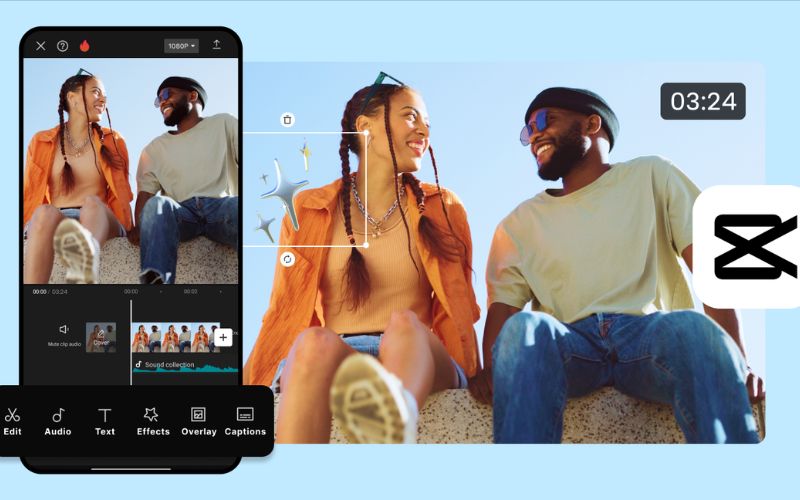
On CuentasGO you can check available CapCut offers and other creation tools, compare access type and review seller information. Start with the plan that fits your devices and then filter by duration and budget.
Buy only when you know what you will receive and how to start using it. If an offer doesn’t clarify delivery, access recovery or incident support, resolve those doubts before paying.
For your first assignment, prioritize what allows you to finish and deliver the project. Later you can expand assets based on recurring tasks, without taking on multiple fees that are hard to use from the start.
Before adding a subscription, review the ones you already have active. That review can free budget for a more useful tool or confirm you already have what you need for your next post.
