
Cheap shared subscription to Windscribe VPN
How many times have you connected to a public Wi‑Fi without a second thought? That’s exactly when a VPN becomes your best ally: it encrypts your connection and hides your IP so you can browse more peacefully. And if you save with our cheap premium accounts, you’ll like to know this service has a pretty decent free plan.
Windscribe VPN: what it is, how to download it and set it up
Connecting to a public Wi‑Fi is convenient, but not always safe. Anyone on the same network can snoop on what you do, and if you browse from home your ISP logs the sites you visit. Windscribe VPN exists to plug that hole: it encrypts everything you send and receive, and replaces your IP with that of one of its servers. Best of all, you don’t have to pay to try it. That’s exactly what we’ll cover in this guide.
What is Windscribe and how does it work?
To put it simply: when you activate Windscribe, your device first connects to a VPN server, and all your traffic goes out from there, protected inside an encrypted tunnel. The sites you visit no longer see your usual IP but the server’s. Your ISP, and anyone spying on the network, will have a much harder time knowing what you do online.
That said, let’s be honest: a VPN does not make you invisible. If you log into your accounts, accept cookies or leave your details somewhere, those traces remain.
Windscribe has apps for almost everything: Windows, macOS, Linux, Android, iOS and even Fire TV. And if you don’t want to install anything, it has a Chrome extension (and depending on the browser, also for Firefox or Edge). Pay attention to the difference, because it matters: the app protects everything leaving the device (email, games, any program), while the extension only covers what passes through the browser.

Windscribe VPN free: limits and differences with Pro
You don’t need a credit card to try Windscribe. The free plan gives you up to 10 GB per month (depending on how the account is set up) and a handful of locations to choose from. It’s enough for occasional browsing or to protect yourself on public Wi‑Fi.
The problem appears with heavy use: video, downloads and multiple devices quickly consume those gigabytes. That’s where Windscribe Pro comes in, removing the data limit and giving access to many more servers.
Aspect | Free plan | Windscribe Pro |
|---|---|---|
Monthly data | Up to 10 GB per month, depending on the account | No data limit |
Locations | Limited selection | Expanded access to the server network |
Recommended use | Testing and moderate browsing | Frequent use, video and downloads |
Devices | Depends on account conditions | Unlimited connections |
Features | Basic options depending on platform | More locations and plan‑related features |

Price varies by plan, currency and current offers. There’s even a Build‑a‑Plan option to pay only for the locations you want, so the final cost depends on how you configure it.
How to download Windscribe safely
The usual advice: download Windscribe only from official sources (its website, Google Play, the App Store or the Chrome Web Store). Be wary of sites offering a “free” or unlocked Pro version: if the file is altered, they can slip you something you don’t want.
Installation is straightforward:
- Sign up for Windscribe using an email and a password you haven’t used before.
- Select the app or extension for your device.
- Download the installer from an official channel.
- Accept the permissions to create the VPN connection.
- Log in, choose a server and click connect.
Also be careful when searching for "Windscribe VPN download": many results point to third‑party pages. Before opening anything, check where the file comes from and who the developer is.
Windscribe for Windows, macOS and Linux
On a computer it’s very easy: go to the official site, pick your system and download. A small tip before running anything: check the file name, especially if your downloads folder is a mess and you have several installers mixed together.
Your system may ask for permission to create a network adapter or a VPN profile during installation. Don’t worry—it’s normal: that’s the part that makes traffic pass through the encrypted tunnel. If it’s your first time using it, leave everything on automatic and don’t change anything.
Windscribe for Android, iPhone and Fire TV
On Android, go straight to Google Play and check the developer is Windscribe. The system will ask permission to create the VPN profile—accept and you’re done.
The process on iPhone or iPad is similar via the App Store, and on Fire TV use the channel the device indicates as compatible.
And what about APKs from sketchy sites? Don’t even try them, unless Windscribe itself redirects you to one. A modified APK can contain malware or steal your passwords without you noticing.
App or Chrome extension?
App or extension? It depends on what you want to cover. The app protects the device’s entire connection, including traffic from other apps. The Windscribe browser extension, by contrast, only acts within Chrome or whatever browser you use.
Situation | Most suitable option |
|---|---|
Protect multiple applications on the device | VPN app |
Browse via proxy only in Chrome | Extension |
Connect to public Wi‑Fi from your phone | VPN app |
Filter ads and trackers while browsing | Extension or browser tools |
Use a compatible Smart TV or Fire TV | VPN app |
The extension is installed from the Chrome Web Store and includes R.O.B.E.R.T., Windscribe’s ad and domain blocker, which cuts trackers, malware and annoying content according to the lists you activate. Keep in mind one thing: if you are logged into a site, that site still knows who you are, VPN or not.

How to set up Windscribe without fuss
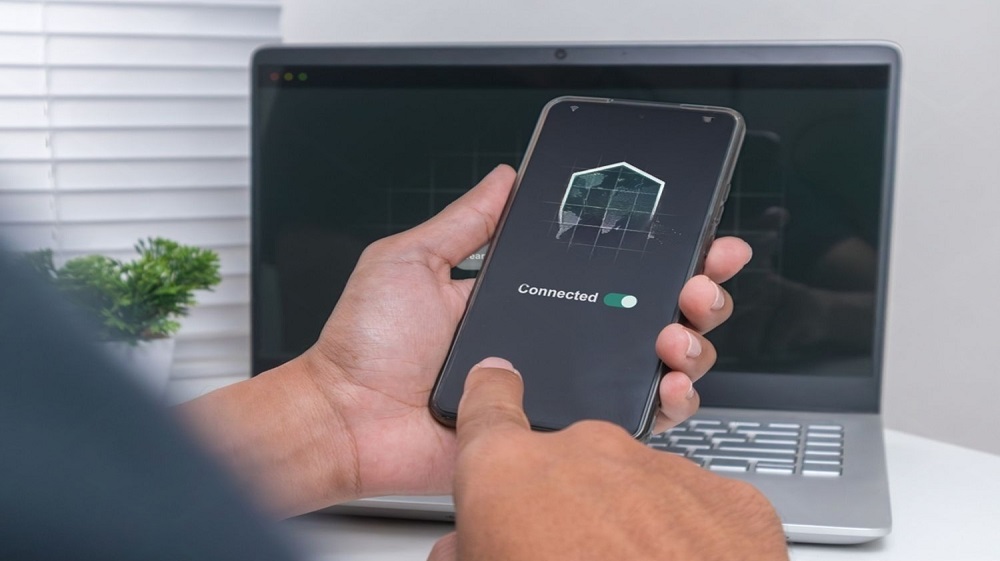
How do you use it? Easy: log in with your account, choose a server from the list and press the connect button. If your phone or computer asks for permission to activate the VPN profile, say yes. Once you see the status "connected," you can browse normally.
As a general rule, the closer the server the better the connection. Choosing a country on the other side of the world only makes sense for a specific need, and you’ll notice higher latency. And if you care about streaming, remember each platform fights back: no VPN guarantees access to a specific catalogue.
Settings you should only change if necessary
Settings? Don’t worry, the automatic protocol works well for most people. If you notice drops, slowness or connection issues, check these options:
- WireGuard: Speed and simplicity. It’s what most people end up choosing.
- OpenVPN: older, but widely compatible and with advanced options.
- IKEv2: great on mobile when switching between Wi‑Fi and mobile data.
- Stealth and WStunnel: for very restrictive networks or filters; not needed at home.
- The Windscribe Firewall stops traffic if the VPN drops so nothing leaks outside the tunnel.
- Split Tunneling lets you exclude a specific application from the VPN.
- Port Forwarding is for experts: only use if you know why you need it.
Split Tunneling, for example, allows you to browse with the VPN active while excluding, say, your banking app (some banks don’t like working with VPNs). Before configuring it, check carefully which traffic remains protected and which does not.
DNS or IPv6 leaks depend on platform and configuration. What always helps: keep the app updated and don’t run multiple VPNs or proxies at the same time, as that’s often where conflicts arise.
Windscribe for daily use: privacy, streaming and limits
In day‑to‑day use, Windscribe shines on networks that aren’t yours: hotel Wi‑Fi, airport networks, the café down the street. Turning it on there is cheap insurance for your information. You can also use the same account on multiple devices, within the service’s allowances.
About streaming—let’s be honest: it eats data, and some platforms refuse to work with VPNs. The free plan’s 10 GB will get you through a single movie, but not much more. If you want to watch series and save money, another smart move is to go for the shared Netflix accounts or Disney Plus available on CuentasGO: you pay much less than the official price and, if something goes wrong, you have quick replacements.
Before deciding, don’t forget the basics: the provider’s no‑logs policy, AES‑256 encryption and available protocols. And most important: a VPN doesn’t replace common sense. Use different passwords for each service, enable two‑factor authentication and be careful with suspicious links.
Common problems with Windscribe
Not connecting? The usual: update the app, close any other VPN or proxy you have open and try another server. Often a simple restart of your phone or computer fixes it.
Slow? First try a nearer server and keep the protocol on automatic. If it doesn’t improve, switch to WireGuard, OpenVPN or IKEv2. Remember final speed also depends on your network, how many people use that server and the service you’re accessing.
Website still showing your real location? Check geolocation permissions in your browser and clear cookies and cache. If you’re using the Chrome extension, also confirm it’s enabled and that you’re logged in with the correct account.
One last case: work VPN profiles or some antivirus programs can cause trouble, especially on Android and company computers. Don’t delete anything until you’re sure you won’t need it for work.
Is Windscribe VPN worth it?
Short answer: it depends on how much you’ll use it. If you want occasional protection on public Wi‑Fi and little else, the free plan is more than enough. But if you’ll use it daily, stream a lot or the 10 GB limit runs out mid‑month, Windscribe Pro pays for itself in peace of mind.
Protect your privacy and save on subscriptions with CuentasGO
Don’t let anyone tell you otherwise: protecting your connection and saving money aren’t mutually exclusive. Windscribe covers the first part, and CuentasGO the second: there you’ll find shared accounts for Netflix, Disney Plus, HBO Max, Spotify, ChatGPT and many more services, always below the official price.
Buying on the platform is easy and secure: payments are protected, sellers have verified reviews and if something goes wrong, managed claims return your money as site credit. You can see all the shared subscriptions available or go straight to the premium packs to get several services at once.
